Managing Groups
The Groups page provides a split-panel interface for managing both client groups and product groups.
Layout
The page features a tab bar at the top to switch between Client Groups and Product Groups. The left panel shows a collapsible tree view of all groups together with a filter field at the top. The right panel shows the members (clients or products) of the currently selected group in a table view with action buttons.
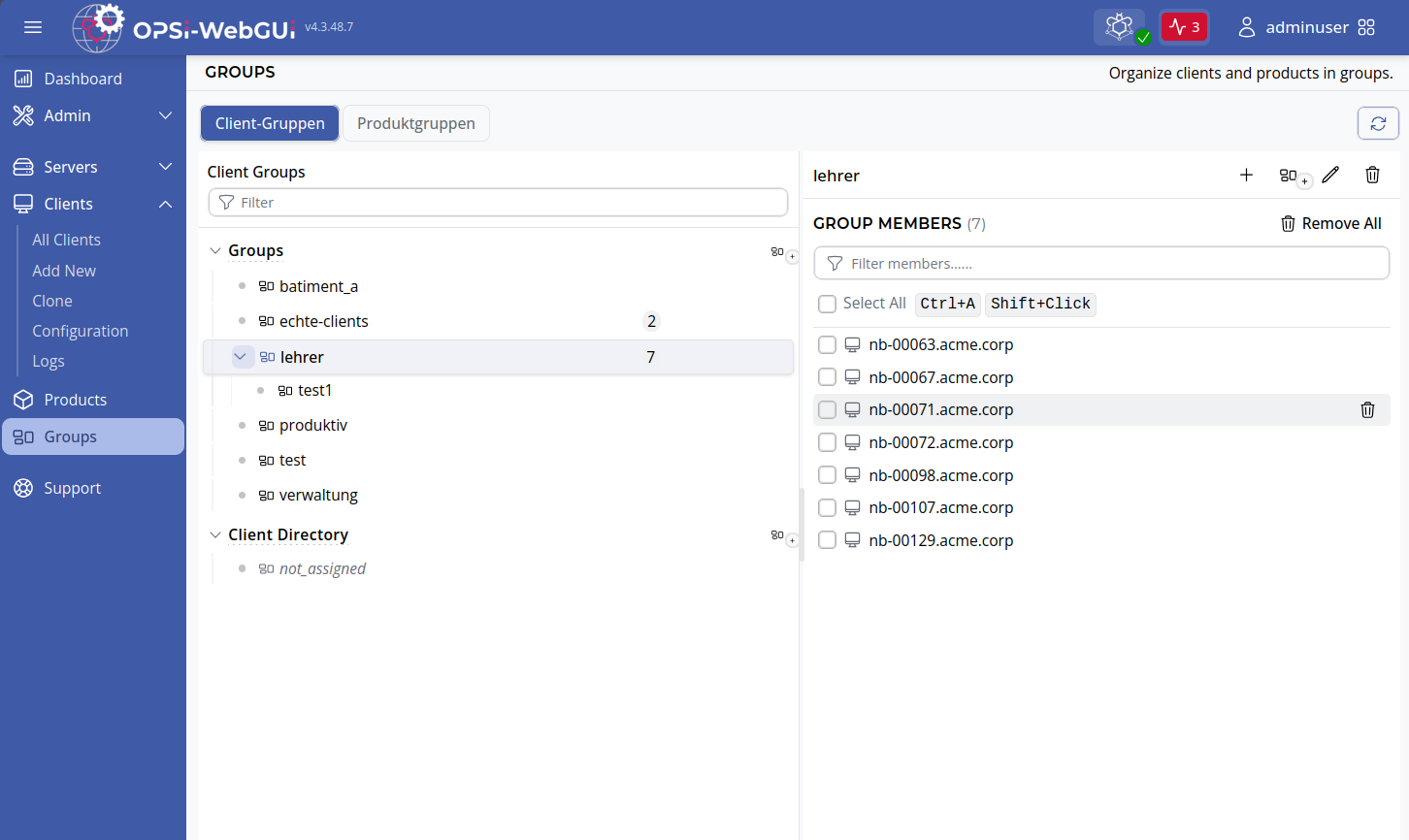
Once you select a group in the tree, the right-hand panel shows its direct members together with the context actions for adding, editing, or removing entries. The result of each operation (success or error) is shown as a status message in the page header.
Client Groups
There are two top-level client group trees with different semantics:
groups-
A free-form hierarchy. A client can belong to multiple subgroups inside
groups. clientdirectory-
A directory-style hierarchy. Each client can appear in at most one subgroup of
clientdirectory. Clients that have not been placed in any subgroup automatically appear in the special subgroupnot_assigned.
The clientdirectory group enforces single-parent membership. Assigning a client to a second subgroup within clientdirectory automatically removes it from its current subgroup.
|
Group Search and Lazy Loading
The group tree is loaded lazily: only the top-level groups and their immediate children are fetched on page load. Expanding a group that has not yet been fully loaded triggers an automatic background fetch of its children and member counts. A loading spinner is shown on the group row during the fetch. This design ensures fast initial load times even for environments with thousands of groups and clients.
Available Actions for Client Groups
The following actions are available for the selected group:
-
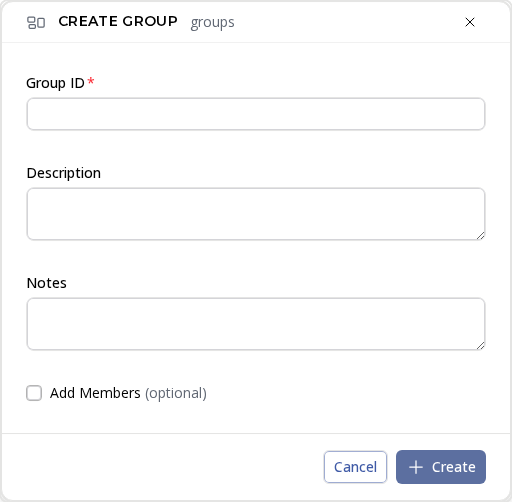
Create subgroup: Create a new subgroup below the currently selected group. Enter a group ID (unique within
groupsorclientdirectory) and an optional description.
-
Edit group: Edit the parent group, description, and notes of the selected group.
-
Delete group: Delete the selected group and all of its subgroups. Member clients are not deleted; they are only removed from the group membership.
-
Add members: Open a dialog to search for and add clients to the selected group.
-
Remove members: Select one or more members in the right-hand table and click Remove to remove them from the group.
Product Groups
Product groups allow you to organize OPSI products into logical categories for easier management and batch operations.
The actions available for product groups are:
-
Create product group: Enter a group ID and an optional description.
-
Edit group: Edit the parent group, description, and notes.
-
Delete group: Remove the group along with all its subgroups and members. Products are not deleted.
-
Add members: Open a dialog to search for and add products to the group.
-
Remove members: Select members in the right-hand table and click Remove.
Using Groups with the Quick Panel
Groups defined on this page are immediately available in the Quick Panel. For group selection behavior and downstream scope, see Quick Selections.