Server
OPSI supports two different server types (see chapter OPSI Servers): config server and depot server. The config server is the central control component of every OPSI environment, and there is only one OPSI config server. The depot server provides files for distributing software, operating systems, and boot images. It is possible to operate more than one depot server in OPSI environments.
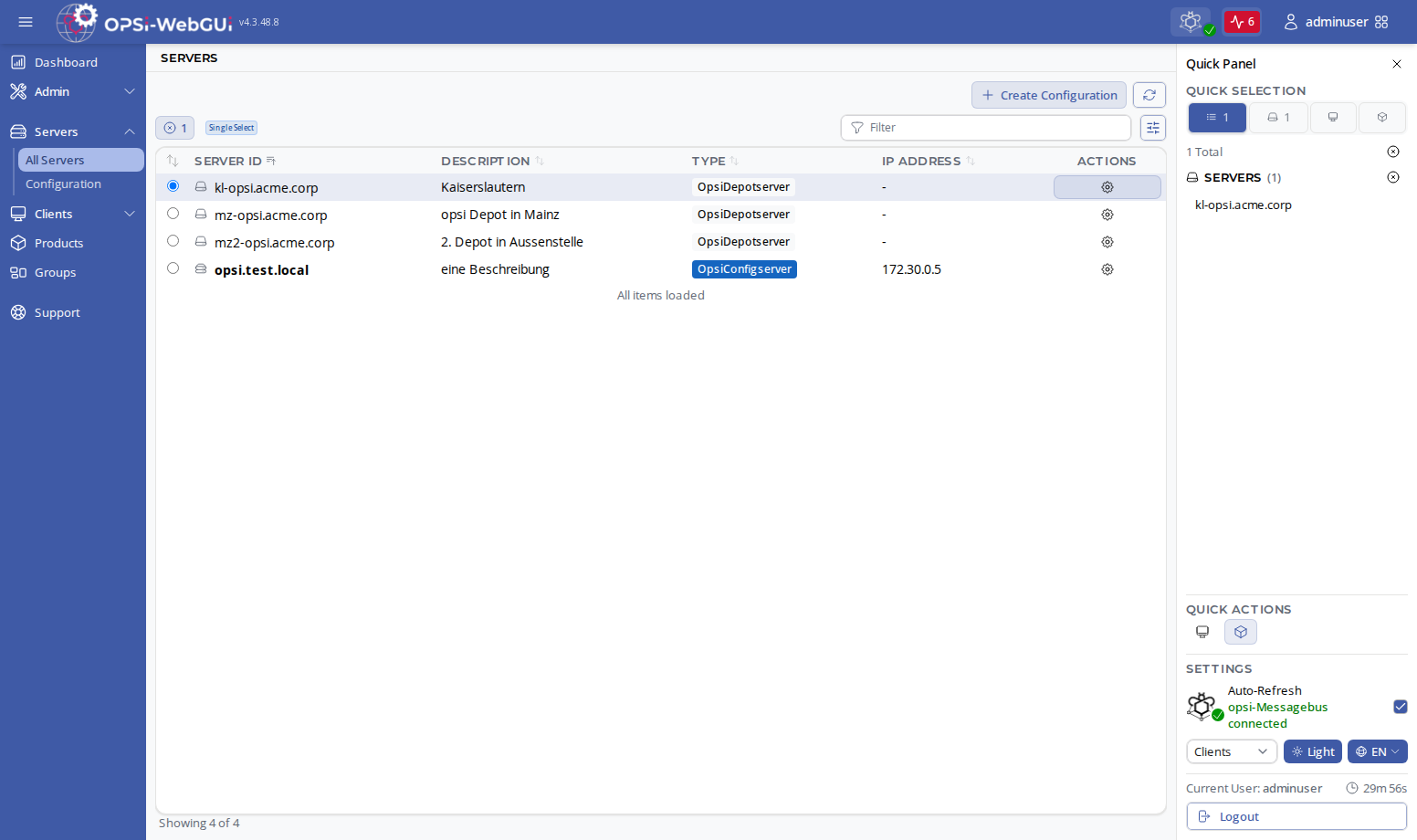
Upon logging in and selecting the server view, the default selection is the OPSI config server, which appears highlighted in the table. You can change this selection by opening Servers / All Servers in the left navigation bar.
Server Table
The server table (Servers / All Servers) lists all known depot servers plus the config server. The config server row is visually distinguished since it is the primary server in every OPSI environment.
The table columns include:
-
Server ID: The hostname of the server.
-
Description: An optional description.
-
Type: Config server or depot server.
-
IP Address: The configured IP address of the server.
-
Actions: Icon button to open the Configuration detail panel.
Table features such as filtering, sorting, column visibility, pagination, and selection work identically across all data tables in the OPSI-WebGUI (see Main Area).
Selecting Servers in the Quick Panel
Server selection in the Quick Panel is documented in Servers Tab.
The server selection drives the scope of all product-related operations:
-
The Products page shows products available on the selected servers.
-
When clients are also selected, product actions apply to those clients against the selected depots.
Editing Attributes and Parameters
To edit server attributes and parameters, either open Servers / Configuration in the left navigation bar or click the gear icon (Configuration) next to a server in the table.
| Clicking on the gear icon and displaying the configuration directly next to the server list has the advantage of allowing you to quickly switch between the settings for different servers. If the table is in Single Select mode, simply clicking the server item itself both selects it and opens its configuration. |
| The former Quick Save feature has been removed. Configuration changes (attributes, parameters, product properties, and action requests) are now collected locally in the browser first. An Unsaved Changes indicator appears in the toolbar showing how many changes are pending. You can review, selectively discard, or save all pending changes at once using the save/discard buttons or the Unsaved Changes modal dialog. Changes are only written to the server when you explicitly click Save. |
The configuration detail panel for a server provides two tabs:
-
Parameters: Displays and lets you edit all OPSI host parameters for the selected server.
-
Attributes: Edit server attributes such as description, notes, and network configuration.
To change the default parameters, select Servers / Configuration from the left sidebar and switch to the Parameters (Defaults) tab.
| The selector used on Servers / Configuration is local to that page. Changing it does not modify global selections and does not change action targets on other pages. |
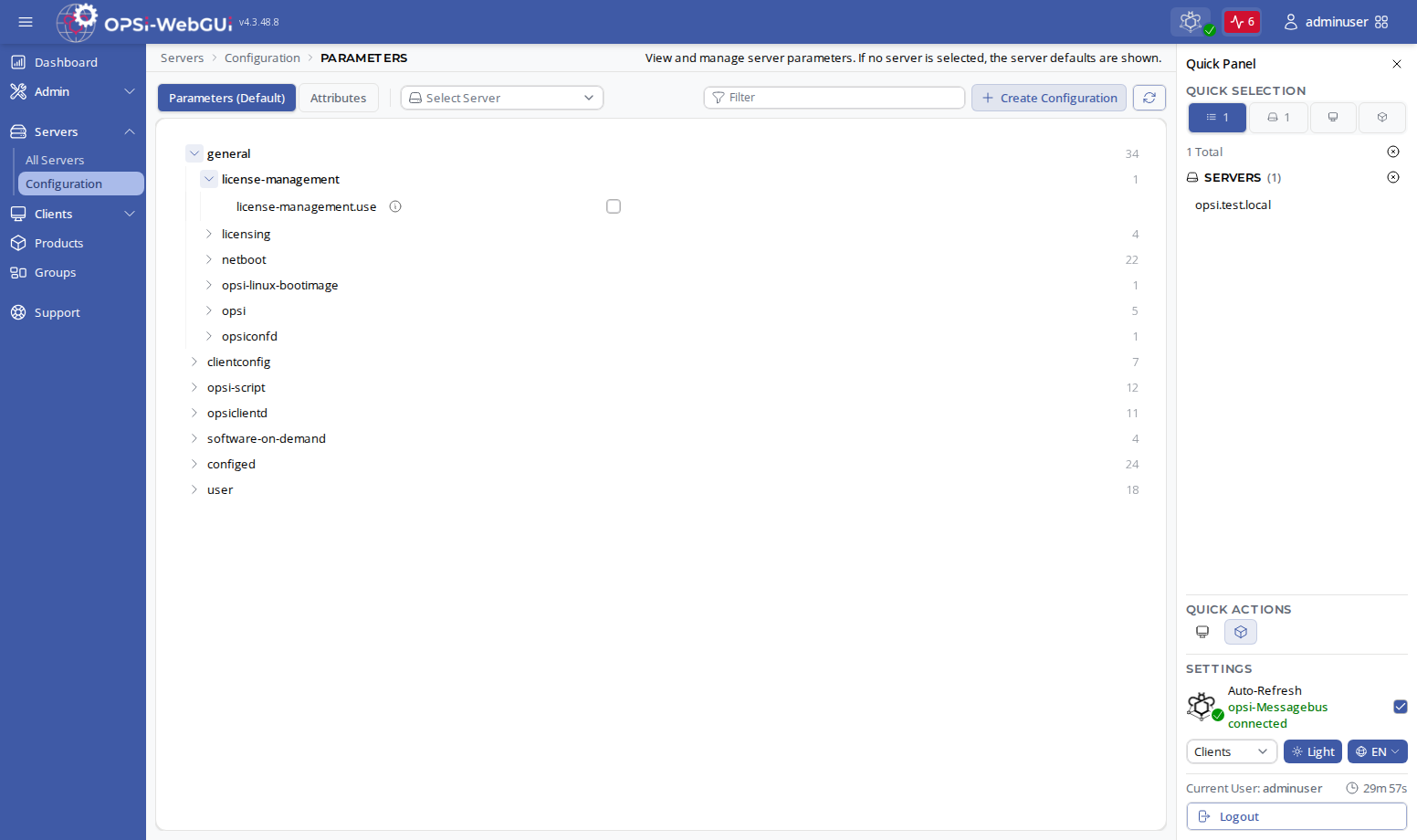
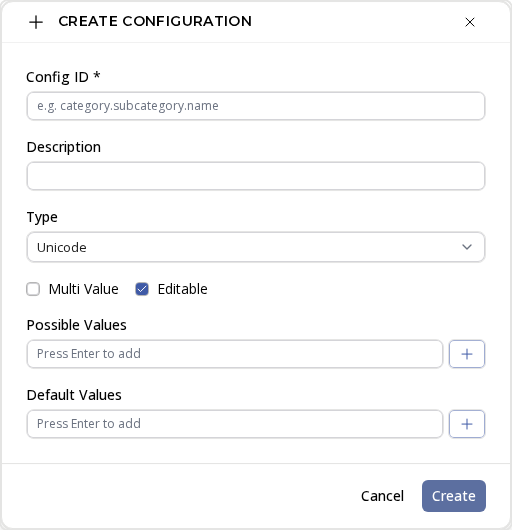
To add a new server configuration entry, use the Create Configuration button in the configuration view.